

STEP-BY-STEP GUIDE
#01.
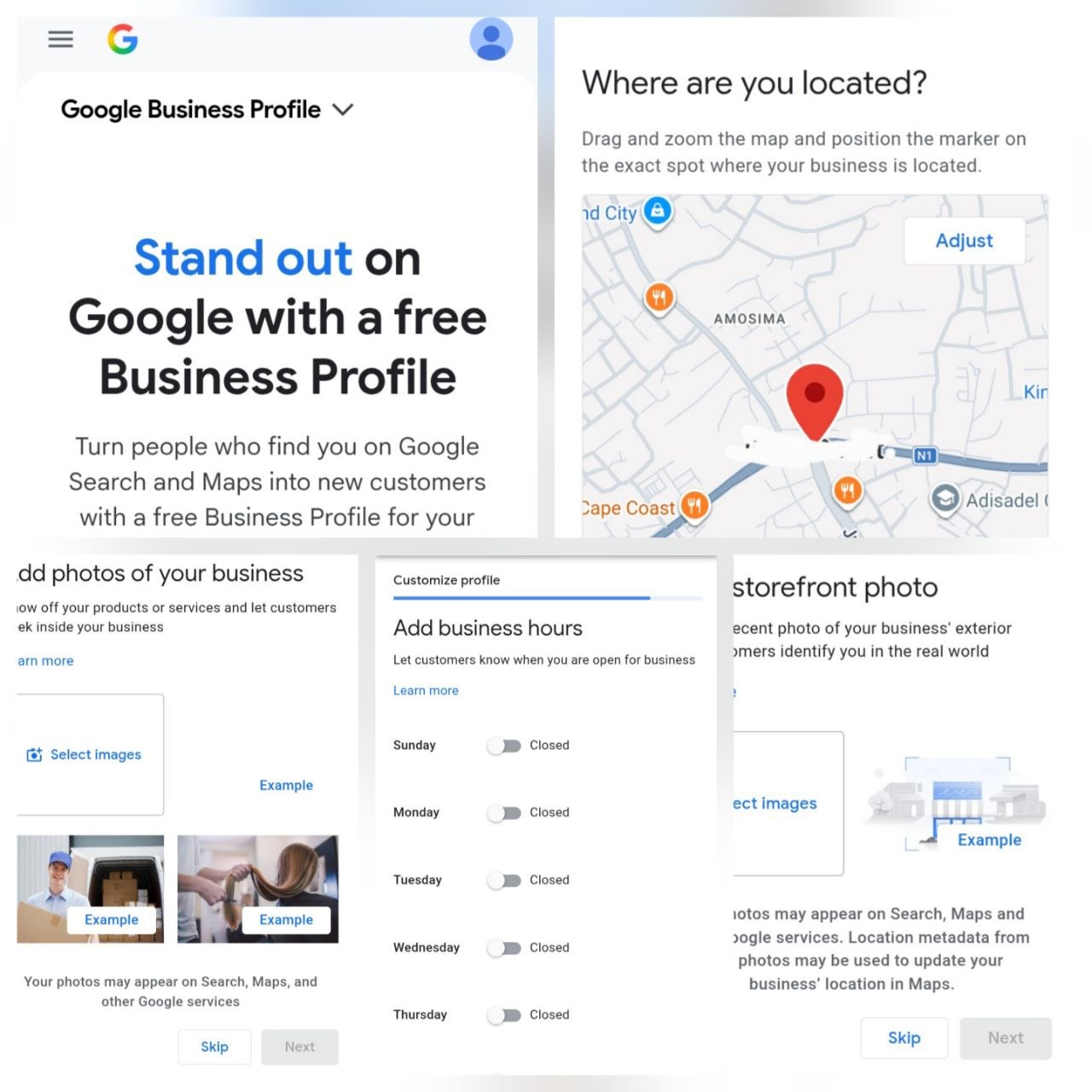
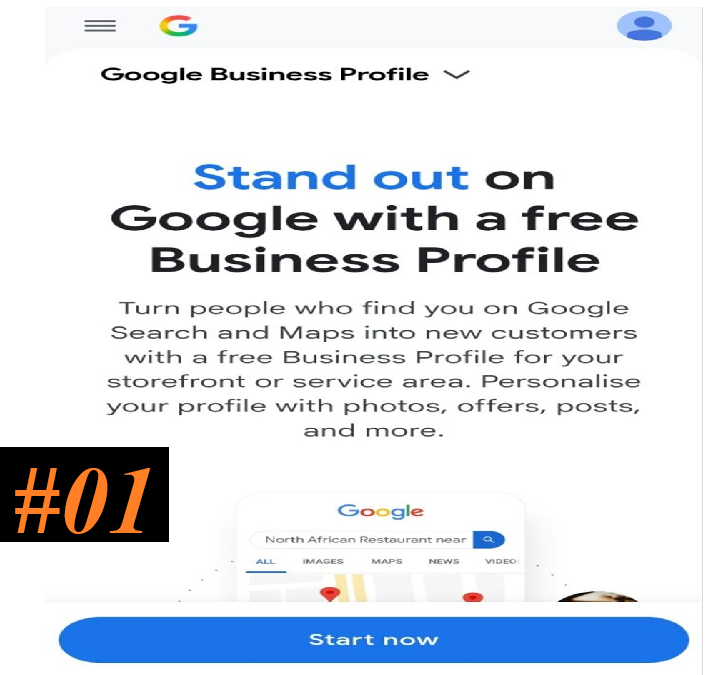
- Go to Business.Google.com and click Start Now.
- Use a Google account (Gmail preferred) to log in.
#02.
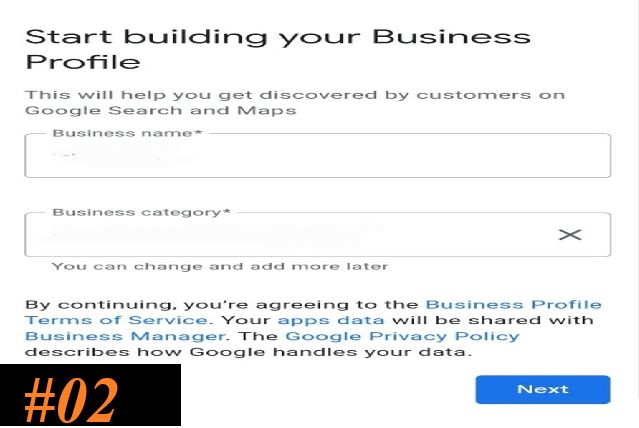
- Start building your Business Profile by entering your Business Name and Business Category.
- And Select Next.
#03.
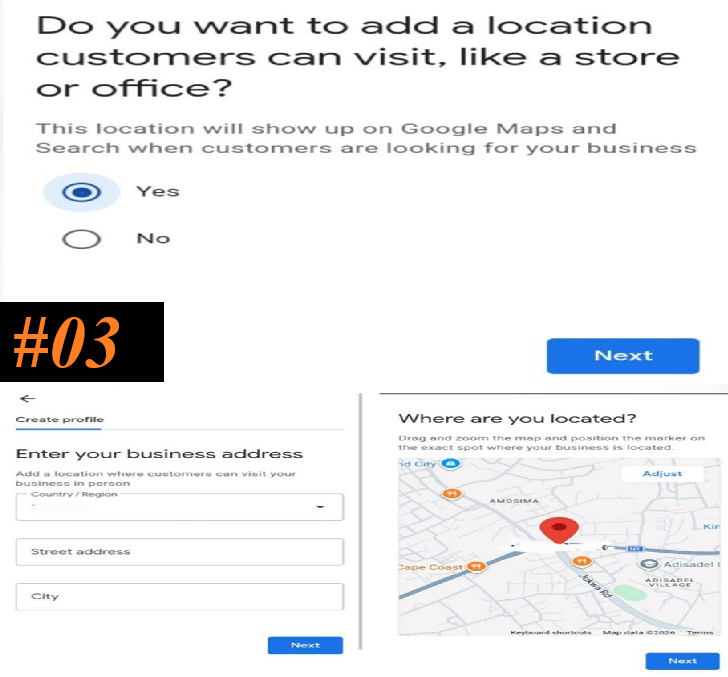
Add a location(s) where customers can visit, like a store or office.
If you want to add the location, select Yes, and Next to add the locations where you would be required to Enter Your Business Address
- Country
- Street Address
- City
And select Next to move to the next phase, where you would be asked to confirm your business location on a Google map.
Drag and zoom the map and position the marker on the exact spot where your business is located.
NOTE:
If you don’t want to add a specific location, select No and Next. You’ll then be prompted to add an area where your customers can locate you, such as a Market name, Town, or city. This is optional. But you would be required to add the region or state where your business is located.
#04.
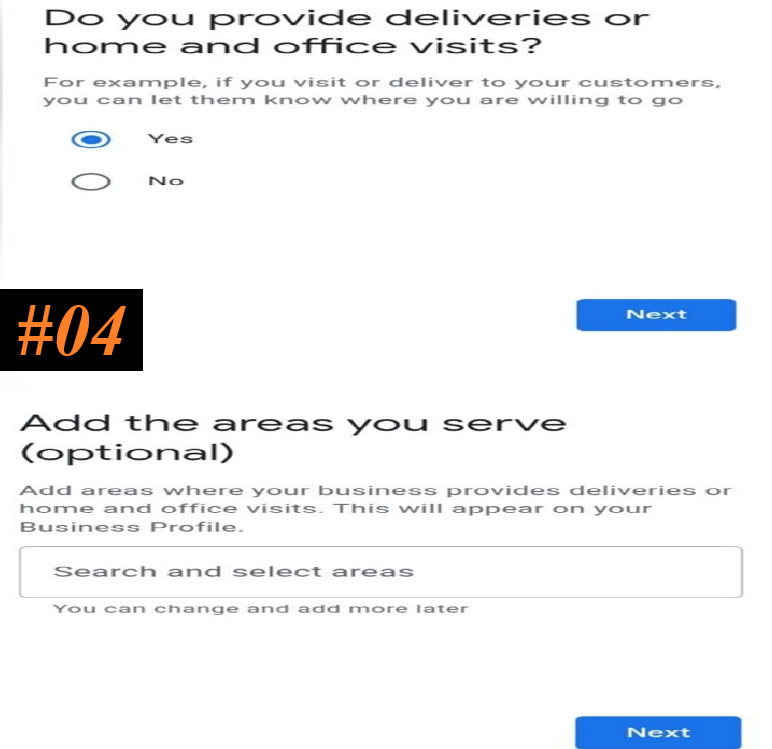
After adding the location, you would be required to state whether you provide deliveries or not/ provide home or office visits, depending on your business.
For instance, if you deliver or visit your customers, you can let them know where you are willing to go. If so, select Yes and Next to add areas you serve.
#05.
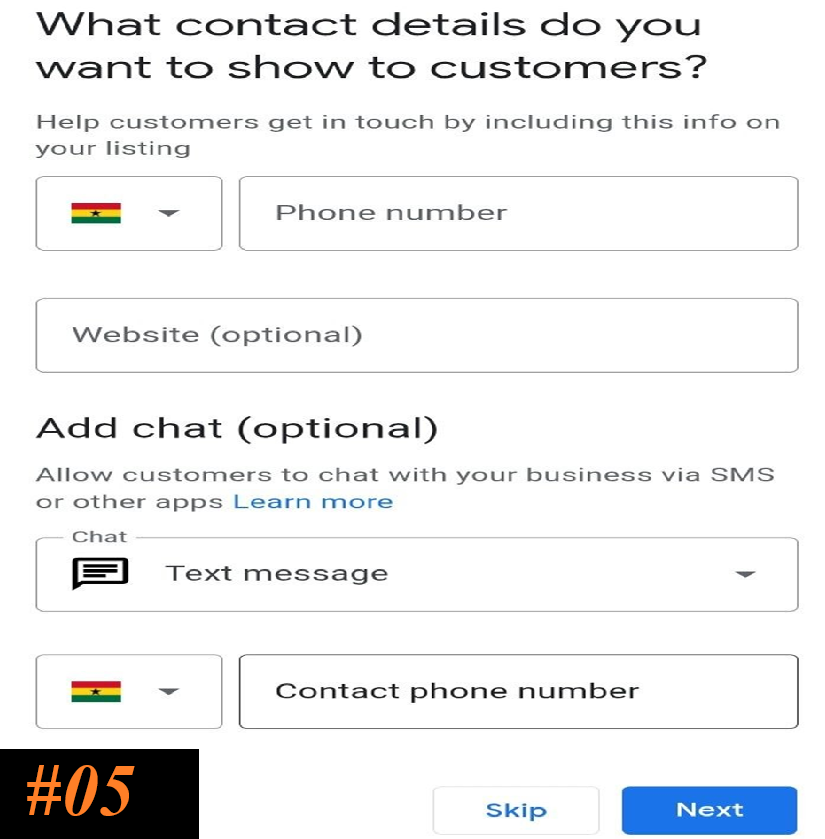
Add contact details that you want Google to show to your customers, which include;
- Phone Number
- Website (Optional)
- Add Chat, either WhatsApp Page/Channel link or Text Message.
#06.
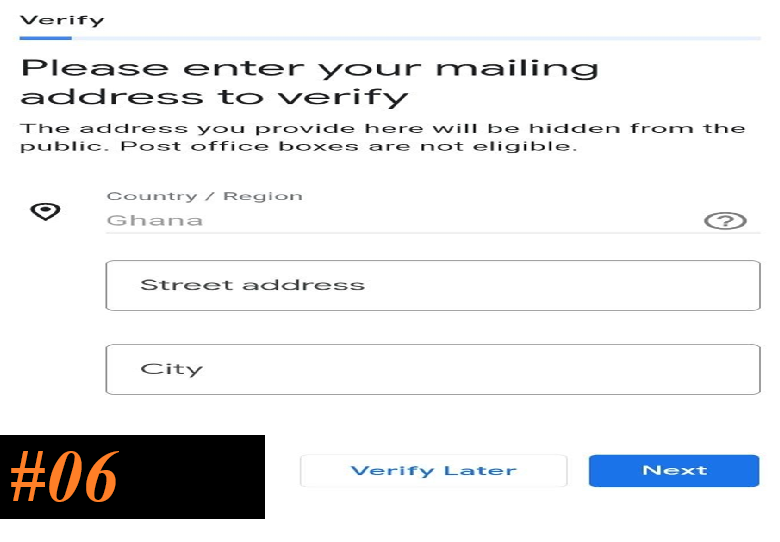
Click Next and Verify Your Account.
- Enter your street address
- City/Town
- And the telephone number to receive your verification code.
#07.
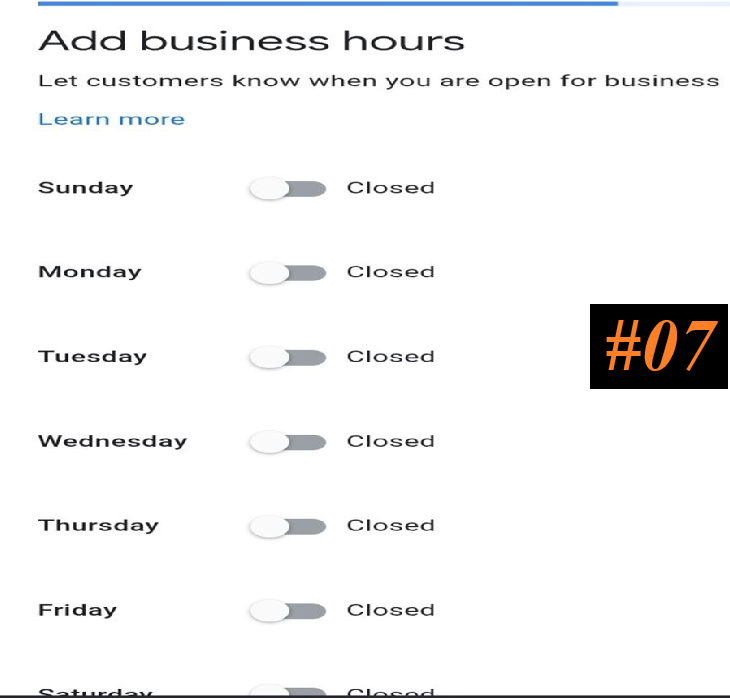
Add your business Days and Hours of Work for each day.
This allows customers to know when you are open for business.
#08.
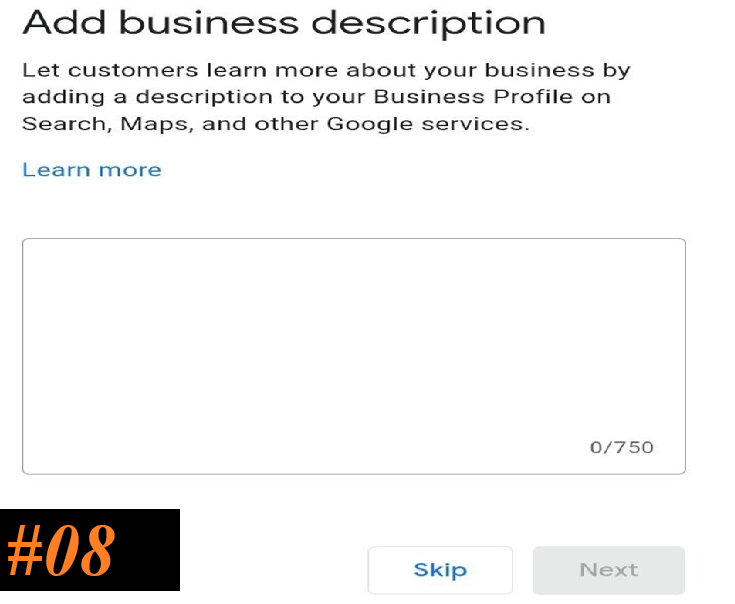
Add Business Description.
Let customers learn more about your business by adding a description to your Business profile on Search, Maps, and Other Google services.
Enter a brief description of your business that shows in the “From the business” section of your Business Profile.
Info to include in your description:
- What you offer
- What makes you special
- How long have you been in business
- Anything else that’s helpful for customers to know
Things to avoid in your description:
- Do not include URLs or HTML code.
- Do not exceed 750 characters in the description field.
- Focus primarily on details about your business instead of details about promotions, prices, or sales.
#09.
Add a Storefront photo and Photos of your Business.
Sharing a recent photo of your business exterior helps customers to identify you in the real world.
You can also show off your products or services and let customers peek inside your business.
To help complete your Business Profile and make it more attractive to customers, you can add photos and videos of your storefront, products, and services. When you add an exterior photo, it helps customers recognize your business when they visit.
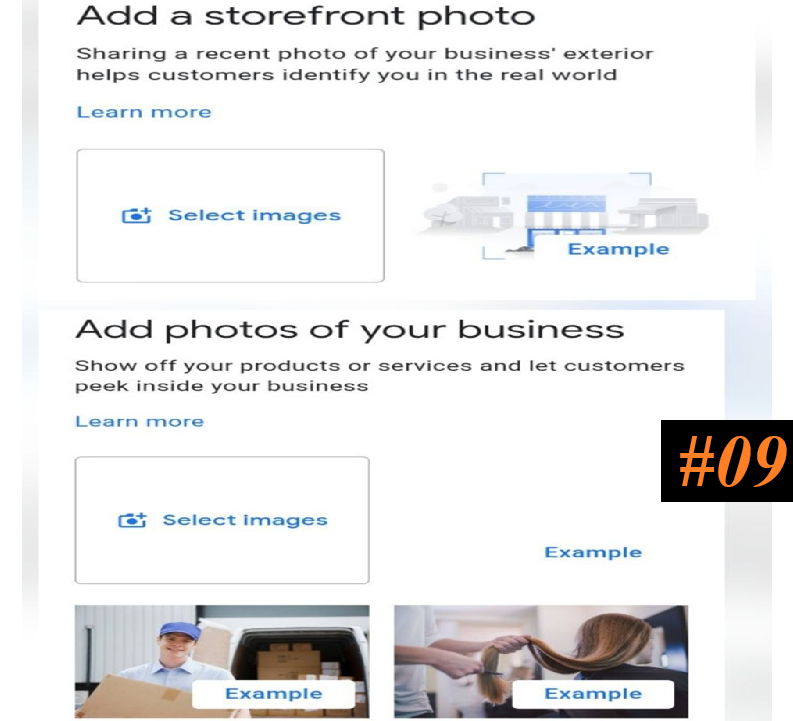
Guidelines for Adding a Photo.
Your photos look best on Google if they meet the following standards:
- Format: JPG or PNG.
- Size: Between 10 KB and 5 MB.
- Recommended resolution: 720 px tall, 720 px wide.
- Minimum resolution: 250 px tall, 250 px wide.
- Quality: The photo should be in focus and well-lit, and have no significant alterations or excessive use of filters. In other words, the image should represent reality.
Types of photos you can add.
There are several types of photos you can add to your Business Profile:
- Logo: Help your customers recognize your business on Google. For businesses that have their basic information, such as a phone number or hours of operation, the Business Profile highlights the logo.
- Cover photo: Set a cover photo at the top of your profile that best represents your business.
- Business photos: Add different photos to highlight features of your business to attract and inform customers.
Guidelines for Adding Video.
Make sure your videos meet the following requirements:
- Duration: Up to 30 seconds long
- File size: Up to 75 MB
- Resolution: 720p or higher
Add photos & videos to your Business Profile on your Android device,
- Open the Google Maps app.
- At the bottom right, tap Business.
- To add a photo, tap More and then Add photo.
- Select your photo or video.
- You can select multiple photos or videos.
- Tap Done.
- At the top right, tap Post.
NOTE:
- You can find your uploaded photos or videos on your Business Profile.
- If your photo doesn’t show in your profile, try uploading it again.
- Make sure there are no duplicates.
How to remove your photo or video from your Business Profile with Google Maps from your Android device
- On your Android device, open the Google Maps app Maps.
- At the bottom right, tap Business.
- Tap See Business Profile and Then Photos.
- Scroll and select the photo or video you want to remove.
- At the top right, tap Delete Trash.
- To confirm that you want to remove the photo or video, tap Delete.
You can also request to remove customer-added photos.
Photo & video upload status After Upload.
After you upload a photo or video, we review it to make sure it meets our photo and video policies. Here are some statuses you’ll find when you upload media:
- Pending: The media is in either the upload or processing stage, or your profile is currently not verified. Pending media doesn’t show up on Google Search or Maps to customers.
- Not approved: The media is flagged and has violated policies. Since it was flagged, the media doesn’t show up on Google Search or Maps.
- Live: The media shows up on Search and Maps for customers.
It can take up to 24–48 hours before your photos and videos show on your Business Profile.
Logo/photo missing
If your logo photo doesn’t appear, make sure you’ve entered all of the necessary info in your Business Profile. This includes:
- Name
- Valid location with a street address
- Categories
- Phone number
- Opening hours
If the cover photo you select is low-quality or if other sources suggest that it’s not the best photo to represent your business, a user-submitted photo may be selected instead.
#10.
Verify your business on Google
To edit your business info on Google, such as business name or opening hours, and interact with customers, you need to verify your business.
When you verify your business on Google, you gain ownership of your Business Profile and can make sure that your business info is accurate.
- Verification methods are automatically determined by Google and can’t be changed.
- In some cases, you may need to verify your business with more than one method.
- To verify your business, try the available options for your Business Profile.
- The verification options depend on your business type, public info, region, or opening hours.
- After you complete the verification steps, Google reviews the info that you provided.
- To help maintain the integrity of your Business Profile, verification review can take up to five working days.
In some cases, Google verifies a profile instantly. This can happen when:
- You verify your website with Google Search Console.
- You use bulk verification.
How to confirm if your business is verified.
- When your business is verified, you’ll get a confirmation email.
- If a third party helps you manage your profile, you can add them to your profile after verification
All your edits will be visible once you are verified.
For General Information, Scholarships, Internships, Jobs, Research Grants, and many more, both local and International,
-
Follow to join WhatsApp Channel.
-
Telegram Channel.